Form 1040-ES is the U.S. estimated tax payment form. It isn't Form 1040, the annual return. TurboTax uses the payments you record when it prepares that return.
This guide covers recording payments already made. It doesn't pay the IRS for you or generate next year's vouchers. For Australia-based readers, it concerns U.S. federal tax only and does not record Australian income-tax payments. Below: where to find the right section, what records to gather, how to enter amounts, and how to fix missing or duplicated payments.
Key Takeaways
- Enter actual estimated payments in TurboTax's estimated-tax section, not as income, deductions or withholding.
- Match each payment to its tax year and records, not the voucher amount.
- Keep federal, state and payroll withholding entries separate.
- Menu names vary by year and version, so confirm the on-screen wording and review the return before filing.
How to Enter 1040-ES Estimated Tax Payments in TurboTax
Step 1: Confirm what type of payment you are entering
Decide which of these you actually have:
- A federal estimated payment made during the tax year
- A prior-year refund applied to this year
- Federal withholding from a W-2 or retirement distribution
- An extension payment
- A state estimated payment
Then gather proof: IRS Direct Pay confirmations, cancelled checks, bank records, last year's return, and your IRS account or transcript details. Direct Pay's confirmation only shows the payment was submitted. IRS guidance says to check your bank statement or tax account about two business days after the scheduled withdrawal.
Step 2: Open the estimated tax payments section
Use TurboTax's search box and type "estimated tax payments," then choose "Jump to estimated tax payments." Or navigate manually:
- Online: Federal > Deductions & credits > Estimated tax payments
- Desktop: Federal Taxes > Deductions & Credits > Estimates and Other Taxes Paid
Menu labels can vary by TurboTax product and tax year; the paths below reflect common 2025 wording. If you don't see the named menu, use the built-in search.
Step 3: Enter the federal payments and prior-year carryover
Select Start or Revisit beside the federal estimated payment type, then answer yes to having made payments. Enter each amount actually paid at the quarterly fields TurboTax shows, adjusting dates as needed to match your records.

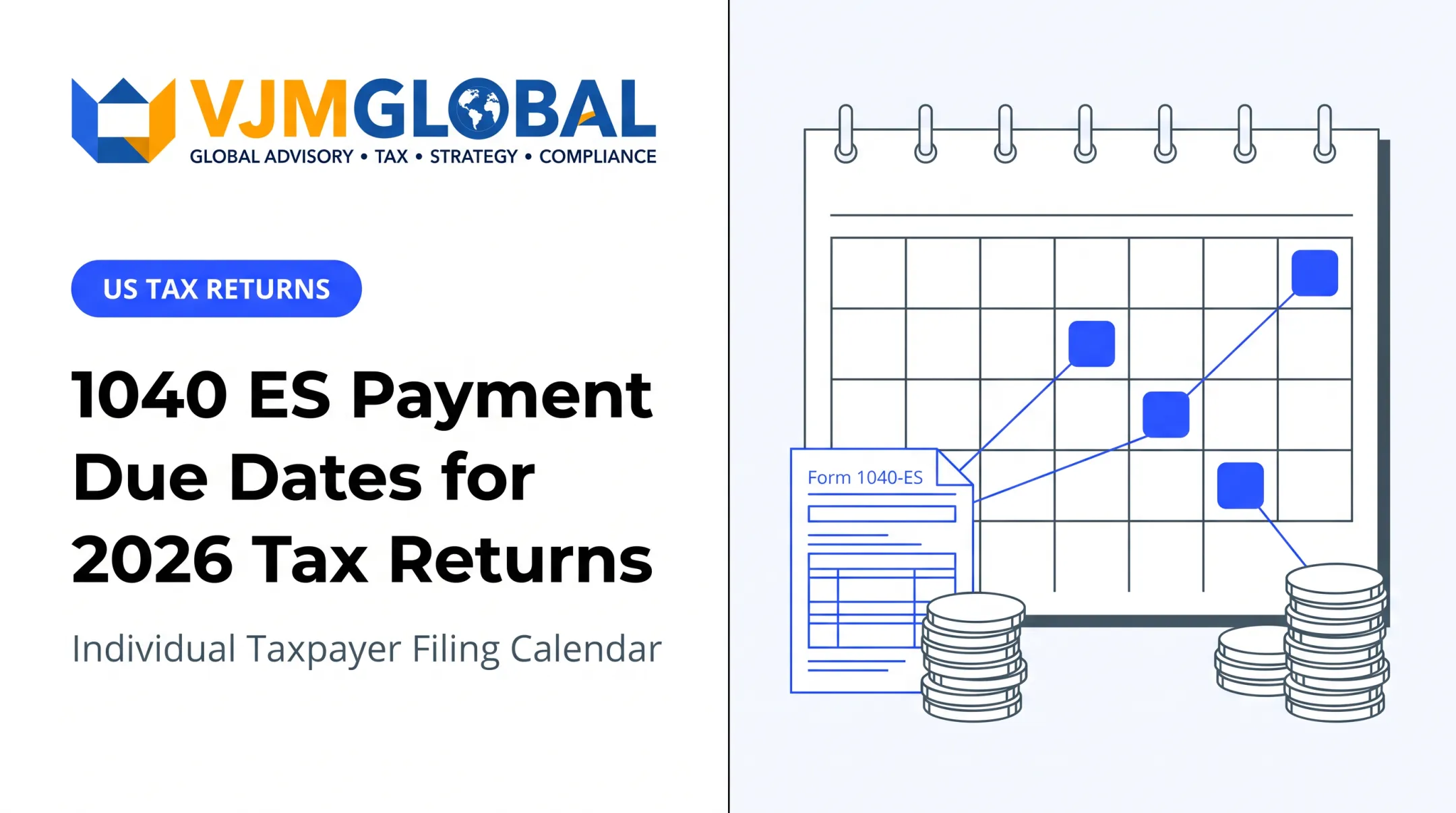
The four IRS payment periods aren't equal quarters. Due dates for 2026 are:
| Income period | Due date |
|---|---|
| Jan 1 to Mar 31 | April 15, 2026 |
| Apr 1 to May 31 | June 15, 2026 |
| Jun 1 to Aug 31 | September 15, 2026 |
| Sep 1 to Dec 31 | January 15, 2027 |

A January payment still counts toward the earlier tax year.
For a refund you applied from last year, use the carryover entry. In TurboTax Online, it sits under Estimates and Other Taxes Paid > Other Income Taxes, labelled as the prior-year refund applied to the current year.
Check whether that amount already transferred from last year's return. If it did, don't add it again as a cash payment.
Step 4: Review the return and handle related state payments
Compare TurboTax's total with your confirmations. The amount should show as a payment or credit, not as income or a deduction.
State estimated payments belong in the state workflow only. Never use a state receipt to fill the federal fields.
When to Enter Payments and What You Need Before Starting
Use this workflow when you're preparing a return after making one or more estimated payments. Never enter a payment you didn't make.
When entering payments is appropriate
Estimated payments are common with:
- Self-employment, freelance or contractor income
- Investment gains
- Rental income
- Partnership or S corporation income
- Any income without enough withholding
When a different workflow is needed
Recording past payments differs from several other tasks:
- Calculating future payments (TurboTax has a separate estimator that prints vouchers)
- Scheduling a new IRS payment
- Reporting withholding
- Correcting a return you've already filed
Payment records and account details
Gather these details before you start:
- Payment amount and date
- Tax year selected for the payment
- Payment method and confirmation number
- Whether you paid directly or applied a prior refund
The IRS Individual Online Account shows up to five years of payment history, including estimated payments.
Tax-year and product readiness
Before you enter amounts, confirm:
- The return's tax year and your filing status
- Whether you use TurboTax Online or Desktop
- Whether a state return or cross-border issue applies
Key Parameters That Affect the Entry
Accuracy depends less on the voucher than on the payment's year, type, timing and jurisdiction.
Payment tax year and allocation
A payment designated for one year stays with that year, even if it cleared the bank later. If you're unsure, use the IRS confirmation to settle it before filing.
Payment category
Estimated payments are different from other credits and payments:
- W-2 withholding
- Retirement withholding
- Extension payments (Form 4868)
- Balance-due payments
- Applied refunds
Direct Pay lists 1040-ES and extension payments as separate reasons. Choose the wrong category and a payment can be omitted, counted twice or credited in the wrong place.

Quarterly or periodic entry
Assign each payment to the period it was made for, not an automatic equal split. If you paid late or have uneven income, the IRS's Form 1040-ES instructions point to Form 2210 and the annualized income method (Schedule AI).
Federal versus state
A federal 1040-ES payment and a state payment are separate obligations in separate TurboTax sections.
TurboTax version and interface
Labels and prompts change between tax years, Online, Desktop and mobile. Use search when the named menu is missing.
Common Mistakes, Troubleshooting, and Alternatives
Watch for these errors:
- Entering the amount printed on an unused voucher as though you paid it
- Mixing in payroll withholding, extension payments, state payments or other-year payments
- Entering a prior-year carryover twice
If totals don't match, compare each confirmation, year, period, method and carryover before changing anything.
Troubleshooting missing or incorrect payments
Check IRS confirmations, bank records, Direct Pay history and the tax year selected. Your IRS tax account transcript shows payment types and post-filing changes.
If the IRS didn't credit a payment, or applied it to the wrong year, call the number on your notice. The IRS CP23 guidance asks for your return and supporting records, such as cancelled checks.
TurboTax doesn't verify or transmit estimated payments, so a TurboTax entry won't fix an IRS crediting error. Contact the IRS or a qualified tax professional.
Alternatives to entering payments directly in TurboTax
Future payments go through IRS channels: Individual Online Account, Direct Pay, debit or credit card, or a mailed check with a voucher. The IRS says individual payments are no longer available through EFTPS as of November 12, 2026. Keep every confirmation for next year's entry.
U.S. citizens in Australia face the same estimated-payment requirements as those in the U.S., and Australian Taxation Office payments can't be recorded as 1040-ES payments.
If you have U.S. filing obligations, multiple jurisdictions, foreign income or entity-level tax issues, VJM Global's tax team, trained in Forms 1040, 1120 and 1065, can review your broader filing position rather than leaving it to software prompts.
Conclusion
Entering 1040-ES payments works best when you identify the payment type, tax year, jurisdiction and period first. Record actual payments, not unused vouchers. Compare against IRS or bank records to avoid missing, duplicated or misclassified credits. If your situation crosses borders or gets complicated, get professional advice before filing.
Frequently Asked Questions
Can you do a 1040 on TurboTax?
Yes. Form 1040 is the annual individual return, and TurboTax guides eligible users through it. Form 1040-ES is the separate estimated payment form.
Is 1040-ES the same as income tax?
No. Form 1040-ES is used to calculate and pay estimated tax during the year. Income tax is the liability reported on your annual return.
Where do I enter estimated tax payments in TurboTax?
Search "estimated tax payments," or look under federal Deductions & Credits for "Estimates and Other Taxes Paid." Labels vary by product and tax year.
Do I need to enter each 1040-ES payment separately?
Yes. Enter each amount in the quarterly or payment fields TurboTax shows, and match amounts and dates to the correct tax year and your records.
Can I use TurboTax to calculate next year's estimated tax payments?
Yes, TurboTax has an estimator that can print vouchers (under Other tax situations). That's separate from entering payments already made, so check your version.
What should I do if my estimated tax payment is missing or entered for the wrong year?
Check the IRS or bank confirmation and the year designation, then correct the TurboTax entry if needed. If the payment can't be verified, contact the IRS or a tax professional.