Yet most US business owners still treat Google Business Profile as the only listing that matters. Apple Maps gets an afterthought, if it gets attention at all.
Listing your business on Apple Maps costs nothing and takes minutes to start. But how fast it goes live, and whether it shows up in the right searches, depends on getting the setup right the first time. This guide walks through the exact steps, what to prepare beforehand, the factors that affect approval and ranking, and where Apple Maps fits alongside your other local listings.
Key Takeaways
- Apple Business Connect is free and reaches millions of US iPhone, Siri, and CarPlay users
- Accurate details and completed verification get listings live within days
- Matching NAP (name, address, phone) across platforms speeds approval and boosts ranking
- New businesses need Document Review or Domain Validation; existing listings use phone verification
- Pair Apple Maps with Google Business Profile and Yelp for the strongest results
How to Add Your Business to Apple Maps
Apple's listing platform - originally launched as Apple Business Connect and now folded into the broader Apple Business platform at business.apple.com (see Apple's 2023 announcement) - lets you control what over a billion Apple users see across Maps, Siri, Messages, and Wallet. Here's how to get your listing set up correctly.
Step 1: Create an Apple Account and Access Apple Business Connect
You'll need a free Apple Account with a name, email, password, and security questions. If you already use an iPhone or iCloud, your existing personal Apple ID works fine. There's no separate "business account" type required in the US.
Head to business.apple.com and sign in. You'll be asked to review and accept Apple's Terms of Use before you can start adding locations. The whole setup takes about two minutes.
Step 2: Search for Your Business or Add a New Location
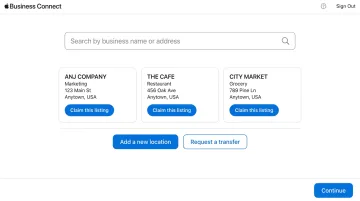
Before creating anything new, search by your business name and US zip code. Apple frequently pulls listing data from third-party sources like Yelp, so a listing might already exist even if you never created one.
- If a matching listing appears, select "Claim This Place" and start the verification process
- If nothing matches, choose "Add a new location with this name" and enter your details from scratch
- If another organization already manages the listing, you can request a transfer, which Apple typically reviews within five business days
Skipping this search step and creating a duplicate is one of the most common mistakes business owners make. It can confuse customers who find two conflicting listings for the same address.
Step 3: Enter Accurate Business Details and Choose a Category
Enter your legal business name, address, phone number, and website exactly as they appear on your official US registration documents. Any mismatch here slows everything down.
Next, pick your primary category (the one that best describes your main function) plus up to four additional categories that describe related services. Apple uses this to determine which Siri queries and Maps searches surface your listing, so a generic choice here limits your discoverability more than most owners expect.
Add your standard operating hours, then layer in any seasonal or holiday overrides. Apple also lets you flag temporary closures, which matters if you want to avoid customers showing up to a locked door.
Step 4: Verify and Optimize Your Listing
Verification works differently depending on what you're claiming:
- Existing single location: Apple places an automated call to the phone number on file and reads out a four-digit PIN you enter into the portal
- New organization or business: Apple requires two verification methods from this list:
- EIN or D-U-N-S number
- DNS domain validation (add a TXT record within 14 days)
- An associated App Store Connect app
- Uploaded documents like a business license or utility bill
Organization verification can take up to five business days, and Apple gives you 60 days total before an unverified registration gets deleted.
Once verified, finish the listing with your logo, high-resolution photos, a short keyword-rich description, amenities, and links to your social accounts. A complete profile appears more credible and drives more calls and direction requests than a bare-bones one.
What You Need Before Adding Your Business to Apple Maps
Most stalled or rejected listings come down to one thing: missing or mismatched information. Prepping these items in advance saves you a week of back-and-forth with Apple support.
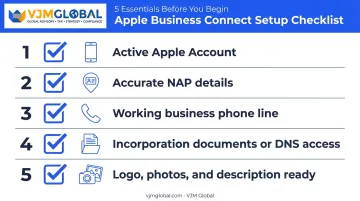
Have ready before you start:
- An active Apple Account with an email you check regularly for confirmation codes
- Accurate NAP details matching your official US registration and EIN documentation exactly
- A working phone line at the business number, capable of receiving a live call or SMS for the verification PIN
- Incorporation documents or DNS access, depending on which verification method you'll use for a new business
- A logo, several high-resolution photos, and a short business description ready to upload the moment verification clears
Businesses with multiple locations face an extra layer of scrutiny here. Each location needs its own listing, and Apple cross-checks NAP details between them, so a mismatched suite number or outdated phone line at one branch can delay approval for all of them. Pull your registration documents for every location before you start, and confirm the details match exactly.
Key Factors That Affect Your Apple Maps Listing Success
Submitting a listing is only step one. Whether it gets approved quickly and shows up in the right searches depends on a handful of variables you control.
Four factors carry the most weight:
- NAP Consistency: Apple cross-references your business data against other sources to confirm legitimacy. Mismatched name, address, or phone details across platforms slow approval and erode trust.
- Business Category Selection: Your category determines which local searches and Siri queries surface your listing. A generic or incorrect choice limits visibility to searchers who'd actually convert.
- Verification Method Choice: Phone verification suits an existing single-location claim, while Document Review or Domain Validation is required for new company registrations. Picking the wrong method delays approval by days or weeks.
- Listing Completeness: Profiles with photos, hours, descriptions, and amenities read as more credible to searchers. Incomplete listings see fewer calls and direction requests.
Common Mistakes to Avoid When Listing on Apple Maps
A few recurring errors account for most of the delays and lost visibility business owners run into:
- Skipping the search step and creating a duplicate listing instead of claiming an existing one pulled from Yelp or another source
- Using inconsistent names, addresses, or phone numbers across Apple Maps, Google, Yelp, and official state or IRS records
- Choosing an overly broad primary category that doesn't match how customers actually search for you
- Ignoring Apple's verification notifications or leaving a claimed listing incomplete for weeks, which stalls it from going live
Fixing these before you submit is far faster than untangling them afterward.
Apple Maps vs. Other Business Listing Platforms
No single platform captures every customer. With iOS commanding roughly 57% of the US mobile OS market as of 2024, pairing Apple Maps with other listings is how you maximize total local search coverage rather than betting on one channel.
| Platform | Best For | Trade-Off |
|---|---|---|
| Google Business Profile | Largest overall map and search user base, built-in review system. 72% of consumers used Google to search for local business information per BrightLocal's 2024 data | Higher competition and requires active review management |
| Bing Places for Business | Reaching Windows users and Cortana/Bing voice search | Smaller reach, but quick to set up and often ignored by competitors |
| Yelp and data aggregators | Apple often pulls listing data straight from Yelp, so updates can cascade automatically | Doesn't replace an Apple Business Connect claim - verification is still separate |
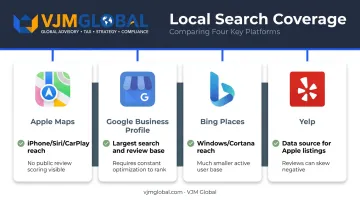
Think of Apple Maps as one leg of a three- or four-platform stool. Skip it, and you're invisible to a huge chunk of iPhone owners using Siri and CarPlay for local search.
Frequently Asked Questions
Apple Maps success comes down to accurate setup, choosing the right verification path, and treating it as one piece of a broader US local search strategy rather than the whole plan.
Is it free to register my business on Apple Maps?
Yes. Listing your business through Apple Business Connect is completely free, with no hidden charges for basic listing features like photos, hours, and descriptions.
What are the benefits of having my business on Apple Maps?
You reach Apple and iPhone users directly, appear in Siri and CarPlay searches, and strengthen your overall local SEO footprint. Accurate, verified listings also build customer trust.
How long does it take for a business to appear on Apple Maps after submission?
Approval typically takes a few days once verification is complete, though timing varies by method. Organization verification can take up to five business days, sometimes longer during periods of high demand.
Do I need a US business license to register on Apple Maps?
Not always. A license is one accepted document among several. New businesses need two verification methods, which can include an EIN, DNS validation, or uploaded documents in place of a license.
Can I edit my business information after it's live on Apple Maps?
Yes. You can update hours, photos, descriptions, and contact details anytime through your Apple Business dashboard, though some changes may trigger a brief review.
What is Apple Business Connect and how is it different from Apple Maps Connect?
Apple Business Connect launched in 2023 as a revamped, expanded version of the older Apple Maps Connect, adding control over Siri, Wallet, and Messages alongside Maps. It has since been folded into the unified Apple Business platform.