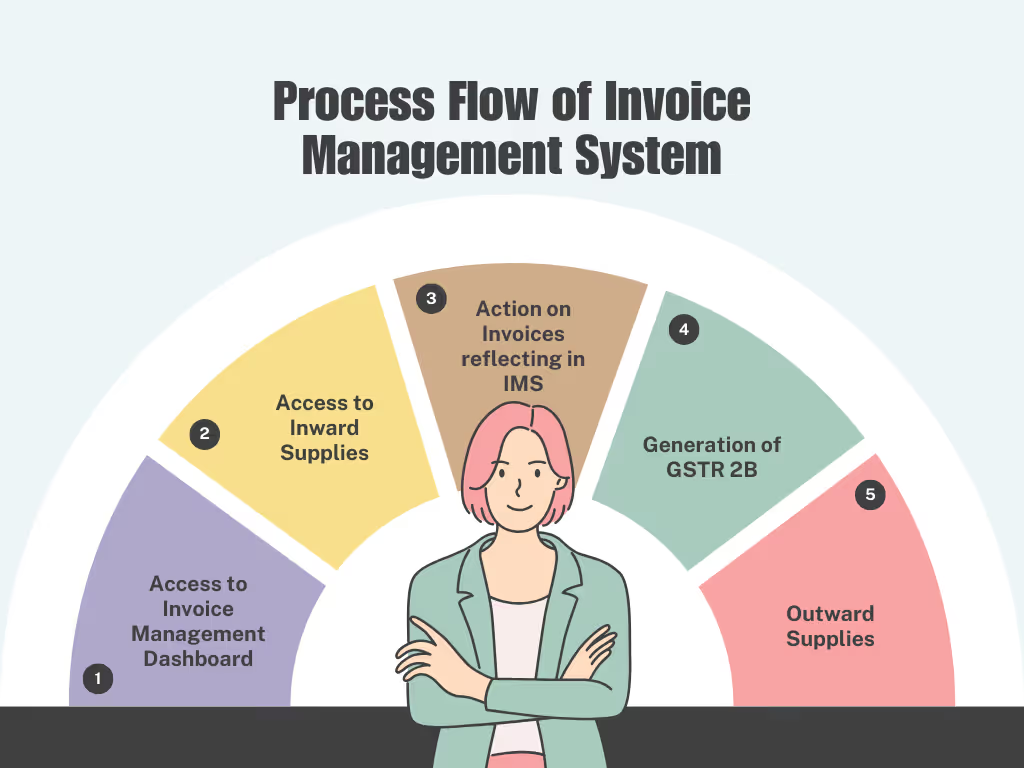
Para permitir que los contribuyentes gestionen de manera eficiente las correcciones o modificaciones de facturas con sus proveedores a través del portal, la GSTN ha introducido un nuevo proceso de comunicación llamado Sistema de Gestión de Facturas (IMS, por sus siglas en inglés). Esta funcionalidad está activa en el portal del GST desde el 1 de octubre de 2024.
El IMS permitirá al contribuyente tomar medidas sobre la factura reflejada en el sistema; es decir, el destinatario puede marcar la factura como aceptada, rechazada o para uso posterior. Esto facilita la gestión de facturas para los contribuyentes, simplifica el proceso de conciliación y mejora la precisión y eficiencia en el cumplimiento del GST.
Este artículo ofrece una guía detallada paso a paso, con capturas de pantalla del portal del GST, para ayudar a los contribuyentes a utilizar esta funcionalidad.
1. Acceso al panel de control del Sistema de Gestión de Facturas
Una vez que los proveedores guardan una factura en el GSTR 1 / IFF o 1A, dicha factura comenzará a aparecer en el panel de control del IMS del destinatario.
Se puede acceder al panel del IMS siguiendo esta ruta tras iniciar sesión en el portal del GST:
Servicios > Devoluciones > Opción Sistema de Gestión de Facturas (IMS).
El panel de control del Sistema de Gestión de Facturas (IMS) se mostrará en pantalla. Consta de 2 secciones:
Suministros recibidos: Panel para ver y gestionar los suministros recibidos declarados por su proveedor en el GSTR-1/IFF/GSTR-1A.
Suministros emitidos: Panel para ver el estado de los suministros emitidos según las acciones tomadas por su destinatario, el cual estará disponible próximamente.
2. Acceso a Suministros recibidos
Para ver y gestionar los suministros recibidos declarados por su proveedor en el GSTR-1/IFF/GSTR-1A, haga clic en el botón "VER" en el recuadro de Suministros recibidos del panel de control.
Tras hacer clic en el botón "VER", aparecerá un mensaje informativo indicando que las facturas sin acción se considerarán aceptadas. Haga clic en el botón "ACEPTAR" para continuar.
Al hacer clic en el botón ACEPTAR, se mostrará en pantalla la página de resumen de Suministros recibidos.
La pestaña "Todo el resto de ITC" estará seleccionada por defecto. El contribuyente puede hacer clic en la pestaña "VER ASESORAMIENTO" para consultar las recomendaciones o utilizar el botón "AYUDA" para obtener aclaraciones y asistencia.
En la imagen anterior, las facturas guardadas o presentadas en el GSTR-1/1A o IFF por el proveedor y recibidas en el IMS se clasifican en diferentes secciones. Estas secciones son hipervínculos; el contribuyente puede hacer clic en cualquier enlace bajo la columna "Encabezado" para ver los registros guardados/presentados correspondientes en el GSTR-1/IFF/GSTR-1A.
Las columnas de la derecha muestran el número de facturas con acciones como aceptadas, rechazadas, pendientes o sin acción. Estos números de resumen son hipervínculos que permiten a los contribuyentes ver y gestionar los registros correspondientes. Los contribuyentes pueden realizar acciones (Sin acción, Aceptada, Rechazada, Pendiente) sobre estos registros.
Por defecto, todos los registros guardados/presentados en el GSTR1/IFF/GSTR-1A aparecen en la columna Sin acción.
Sin acción: Todas las facturas guardadas/presentadas por el proveedor en su GSTR-1/IFF/GSTR-1A sobre las cuales el contribuyente destinatario no haya tomado ninguna medida permanecerán en la categoría "Sin acción".
Aceptada: Número de facturas aceptadas por el contribuyente destinatario.
Rechazada: Número de facturas rechazadas por el contribuyente destinatario.
Pendiente: Número de facturas marcadas como pendientes por el contribuyente destinatario.
3. Acción sobre las facturas reflejadas en el IMS
Al hacer clic en el hipervínculo "Facturas B2B" se mostrarán todos los registros en pantalla.
El contribuyente puede utilizar la función de 'búsqueda' para localizar cualquier factura basándose en el GSTIN, tipo de factura (regular, SEZ, etc.), rangos de fechas específicos, declaraciones de origen y más. Esto permite a los contribuyentes tomar la acción deseada sobre las facturas.
Los contribuyentes pueden realizar acciones sobre un registro haciendo clic directamente en los botones:
A para Aceptada,
R para Rechazada y
P para Pendiente.
Los contribuyentes deben hacer clic en el botón GUARDAR para registrar la acción tomada sobre un documento.
Selección masiva
The recipient can also take bulk action by selecting the multiple records and choosing to accept, reject, or mark them as pending.
To select multiple records, check the box in the header. A popup will appear on the screen. You can click "Select all records of current page" to choose records on the current page or select the "Select all records of all pages" radio button to select all available records across all pages. Click on the PROCEED button to proceed.
After selection, taxpayers can either accept, reject, or keep the said records pending by selecting the action from the header and clicking on the SAVE button.
Download available in Excel Format.
The details in the section-wise tables can be downloaded in a simple Excel format by clicking the "DOWNLOAD EXCEL" button at the bottom.
The table is organized in a clear and straightforward format, allowing taxpayers to check and verify all records offline before taking any action.
The taxpayer can also download the complete IMS table in Excel.
Reset of Records
Action taken by the recipient can be revised by clicking on the "RESET" button at the bottom.
Taxpayers can take action in a similar way as mentioned above for all other tables as well.
4. Generation of GSTR 2B
The GST system will automatically generate a draft GSTR-2B on the 14th of the following month. This draft can be considered final if no action is taken by the recipient taxpayer.
However, if the recipient takes any action after the draft GSTR-2B is generated, they must recompute their GSTR-2B before filing GSTR-3B.
The "COMPUTE GSTR-2B" button will be enabled after the 14th if the taxpayer makes any changes on the IMS dashboard. Taxpayers can click this button to recompute their GSTR-2B.
After recomputation, they can navigate to GSTR-2B to view the latest ITC details, which will auto-populate in GSTR-3B.
On clicking the COMPUTE GSTR-2B button a popup will be displayed on the screen. Click on the AGREE AND CONTINUE button to compute.
5. Outward Supplies
Click on the VIEW button on the Outward Supplies tile to view the status of outward supplies reported based on action taken by your recipient.
The Outward Supplies page will be displayed. Select the Financial Year and Return Period from the respective dropdown lists, then click the "SEARCH" button to proceed.
A list of all B2B supplies reported in GSTR-1/IFF/GSTR-1A will be displayed in a tabular format.
Taxpayers can view various categories of B2B supplies reported in each table by clicking the descriptions.
The number hyperlink under the "Number of Records" column represents the count of records added to the respective table.
On Clicking the hyperlink will display all invoices reported in the table. Taxpayers can filter the list by using the Filter field or by entering keywords in the Search field. They can download the details in Excel format by clicking the "DOWNLOAD EXCEL" button and navigate back to the summary page by clicking the "BACK TO SUMMARY" button.
Taxpayers can view and download the invoice details for all other tables as well as mentioned above.
Conclusion:
The invoice management system is indeed an action taken to enhance the correctness of ITC claimed by the taxpayer. However, in the case of numerous invoices, it can be difficult for the taxpayer to match all the invoices with IMS in 6 days only (14th of the following month till the due date of filing of GSTR-3B). However, IMS will turn out to be a game changer under GST.
CA Sachin Jindal
Explore las perspectivas, consejos y actualizaciones de expertos del CA Sachin Jindal


%20(2).avif)