The recipient can also take bulk action by selecting the multiple records and choosing to accept, reject, or mark them as pending.
To select multiple records, check the box in the header. A popup will appear on the screen. You can click "Select all records of current page" to choose records on the current page or select the "Select all records of all pages" radio button to select all available records across all pages. Click on the PROCEED button to proceed.
After selection, taxpayers can either accept, reject, or keep the said records pending by selecting the action from the header and clicking on the SAVE button.
Download available in Excel Format.
The details in the section-wise tables can be downloaded in a simple Excel format by clicking the "DOWNLOAD EXCEL" button at the bottom.
The table is organized in a clear and straightforward format, allowing taxpayers to check and verify all records offline before taking any action.
The taxpayer can also download the complete IMS table in Excel.
Reset of Records
Action taken by the recipient can be revised by clicking on the "RESET" button at the bottom.
Taxpayers can take action in a similar way as mentioned above for all other tables as well.
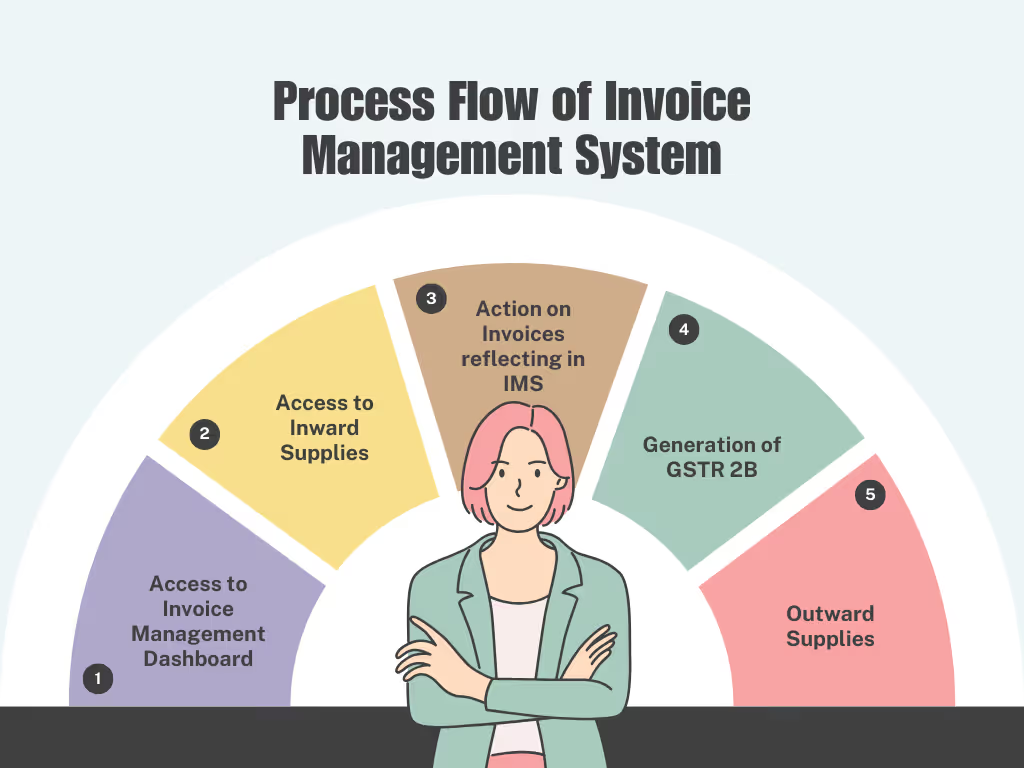
4. Generation of GSTR 2B
The GST system will automatically generate a draft GSTR-2B on the 14th of the following month. This draft can be considered final if no action is taken by the recipient taxpayer.
However, if the recipient takes any action after the draft GSTR-2B is generated, they must recompute their GSTR-2B before filing GSTR-3B.
The "COMPUTE GSTR-2B" button will be enabled after the 14th if the taxpayer makes any changes on the IMS dashboard. Taxpayers can click this button to recompute their GSTR-2B.
After recomputation, they can navigate to GSTR-2B to view the latest ITC details, which will auto-populate in GSTR-3B.
On clicking the COMPUTE GSTR-2B button a popup will be displayed on the screen. Click on the AGREE AND CONTINUE button to compute.
5. Outward Supplies
Click on the VIEW button on the Outward Supplies tile to view the status of outward supplies reported based on action taken by your recipient.
The Outward Supplies page will be displayed. Select the Financial Year and Return Period from the respective dropdown lists, then click the "SEARCH" button to proceed.
A list of all B2B supplies reported in GSTR-1/IFF/GSTR-1A will be displayed in a tabular format.
Taxpayers can view various categories of B2B supplies reported in each table by clicking the descriptions.
The number hyperlink under the "Number of Records" column represents the count of records added to the respective table.
On Clicking the hyperlink will display all invoices reported in the table. Taxpayers can filter the list by using the Filter field or by entering keywords in the Search field. They can download the details in Excel format by clicking the "DOWNLOAD EXCEL" button and navigate back to the summary page by clicking the "BACK TO SUMMARY" button.
Taxpayers can view and download the invoice details for all other tables as well as mentioned above.
結論:
The invoice management system is indeed an action taken to enhance the correctness of ITC claimed by the taxpayer. However, in the case of numerous invoices, it can be difficult for the taxpayer to match all the invoices with IMS in 6 days only (14th of the following month till the due date of filing of GSTR-3B). However, IMS will turn out to be a game changer under GST.


%20(2).avif)



.avif)